
The SoCreate Weekly Museletter
Diverse Storytelling, True Story Inspiration, and Structuring Your Script!
Hello SoCreators,
Welcome to this week's SoCreate Weekly Museletter, where we're excited to share fresh insights, innovative features, and creative challenges to inspire your screenwriting journey. Let's dive into what's new!
New Feature Alert: Cinematic Direction & Aliases!
The SoCreate Team is pleased to announce TWO new features now available in SoCreate Writer: Cinematic Direction and Aliases. Both features put more power in your hands to be in control of your story.
Cinematic Direction
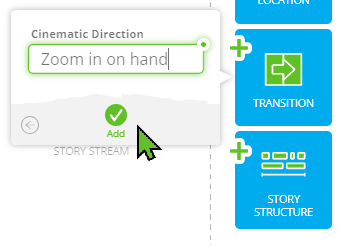
Thanks to filmmaker Robert Hagans, you can now add Cinematic Direction to your screenplay in SoCreate.
Rob needed a way to insert camera shot direction in his screenplay, and we didn't have a way to do what he needed! So, we jumped on it and built a new transition type that enables you to add camera shots and other cinematic direction easily.
Just click +Transition and select Cinematic Direction. From here, type any direction you’d like and then click “Add.” Your Cinematic Direction will appear right after where you left your Focus Indicator in your Story Stream.
When you export your script, Cinematic Direction will appear left-justified in bold, just as you’d expect!
Cinematic Direction puts more power in the writer's hands by allowing you to direct exactly how you want something to appear on screen. While some director's may not like this, indie filmmakers who write and shoot their own scripts love it!
Have a suggestion for a feature not yet available in SoCreate? We are always listening, so please, drop us a note at YourFriends@SoCreate.it.
Aliases
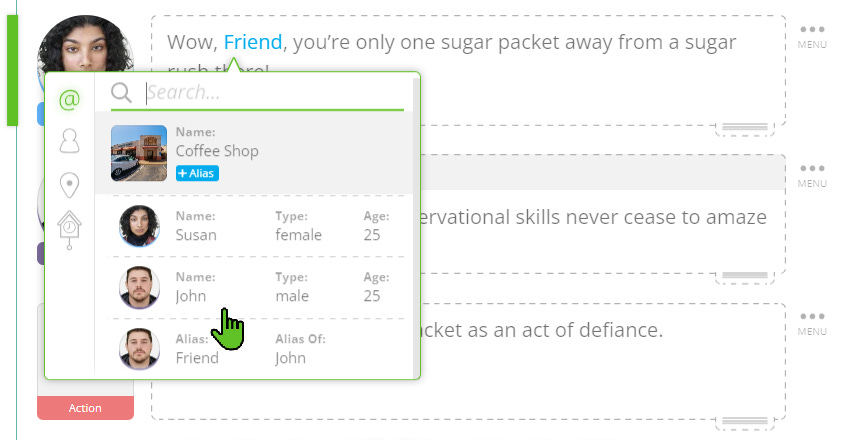
Aliases allow you to refer to a single character, prop, or location by as many names as you’d like while still being able to centrally manage these names in a single place if you decide to change them later.
To add an Alias to an existing Story Asset such as a Character, Location, or Prop, type the '@' sign to bring up the Quick Add list of those Assets, then click on the blue "+Alias" button beneath the Asset you want to add an Alias to. You can also add Aliases when editing a Character, Location or Prop by clicking on the new Aliases tab which appears at the top of the edit pop-up. In this tab, you can add, update, delete, and merge Aliases.
Aliases make your story richer and more natural without making it more complex. For example, suppose you have a character named Jennifer Smith but in the screenplay other characters refer to Jennifer as Jen, Mom, and Doctor. With an Alias for this character, you can refer to her by @Mentioning these additional names without the script losing the underlying understanding that these are the same person.
If you later decide to change an Alias from Mom to Mother, SoCreate updates the Alias everywhere throughout your script. If you decide to delete the Alias, the Character’s name will revert to Jennifer Smith everywhere you’ve used it in your script. It's really powerful!
You can also create Aliases the same way with your Locations and Props. Now you can call a prop “The Murder Weapon,” and Alias it as "The Gun" and "The Key Piece of Evidence" to refer to it multiple ways.
You can add as many Aliases to Characters, Props, or Locations as you’d like.
Exploring This Week’s Featured Blogs

How to Write More Diverse Stories: Embrace diversity in your storytelling with this comprehensive guide. Learn how to create authentic and inclusive narratives that resonate with a broader audience.

20 Writing Ideas Based on True Stories: Need inspiration? Explore these 20 writing ideas derived from real-life events. From historical dramas to personal anecdotes, true stories can spark your creativity.

Examples of 5-Act Structure: Break away from the conventional 3-act structure and explore the 5-act structure in storytelling. Understand how it works and see examples of how it can add depth to your screenplay.
Try SoCreate, the more visual and fun way to create a professional script!
SoCreate Feature Highlight: Adding Story Structure

Story structure is the backbone of a great screenplay. With SoCreate, you can effortlessly add, visualize, and manage story structure, allowing you to focus on what matters most - your creativity.
In a traditional screenplay, it’s difficult to understand where you’re at in your story. Are you in the third scene in this act or the fifth? Figuring out which act and scene you’re on requires scrolling to various pages or counting to find your place, taking you out of your writing flow.
In SoCreate, you can always see your story structure! At the top of your Story Stream, acts, sequences, and scenes wrap the entirety of the stream, so you’ll never lose your place. The scene, sequence, and act that you’re writing within stay pinned to the top of your Story Stream.
Why is SoCreate’s Story Structure feature better than traditional screenwriting tools?
SoCreate’s Story Structure allows you to visualize your story's flow and make adjustments as you write. Every Story Structure item like acts and scenes can be dragged and dropped with ease. If you decide a certain scene needs to occur earlier or later in your story, just click and hold the drag handle on the heading of that scene. At outline view appears so you can easily drag and drop the scene wherever you see fit.
SoCreate Weekly Writing Challenge

Ignite your creativity with SoCreate's weekly writing challenges. Each week, we present a new prompt to inspire you and help you stretch your writing muscles.
Location: EXT – Central Park – Day
Characters: Juliette
Scene Description: Juliette (40) jogs along her usual morning route through Central Park. Her headphones are blaring, and she doesn’t hear the person running up behind her. The stranger taps her on the shoulder.
Prompt: Write a conversation that describes what happens between the stranger and Juliette in this Central Park encounter. What does the stranger want?
Extra Credit: Choose one line of dialogue in your story, and change the Dialogue Type. For example, a character might deliver a line of dialogue off camera, as voiceover, or a as a text message. While you're focused within the editor on a Dialogue Stream item, you can point out Dialogue Type by clicking on the icon that looks like a person speaking. From here, choose from multiple options that give more detail about how the character is meant to deliver the dialogue. Upon previewing your story in the traditional screenplay format, this notation will appear to the right of the character's name in parentheses, just as you'd expect it to in an industry-standard script. Give it a try!
As we walk with you on your screenwriting adventure, remember that creativity is a thrilling journey filled with discovery, growth, and joy. Keep exploring, learning, and writing in the way that only you can!
Until next week,
<3 Your friends at SoCreate
Try SoCreate, the more visual and fun way to create a professional script!